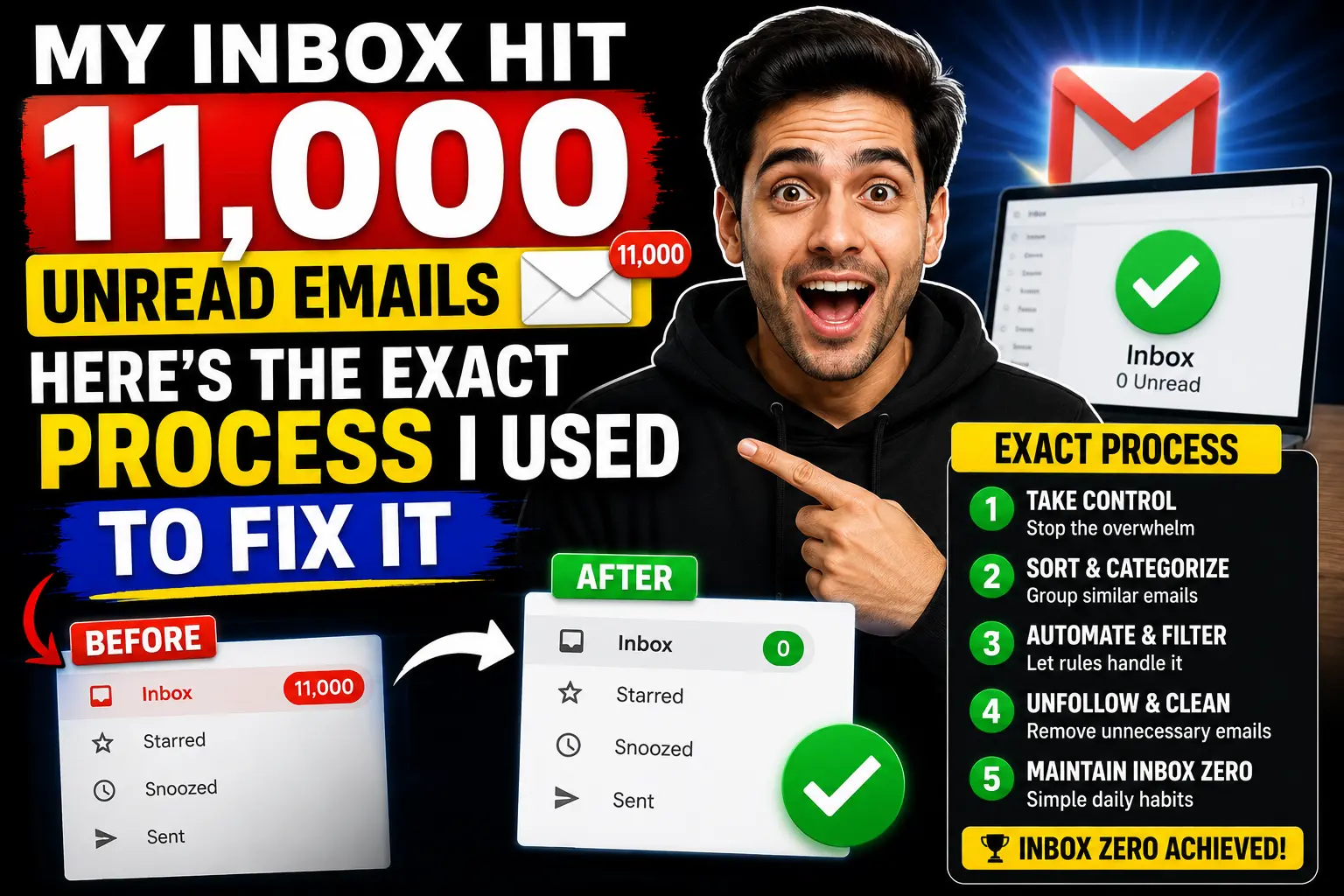
I’m not proud of this number: 11,247 unread emails.
That was my Gmail count about two years ago. I’d let it spiral for months — ignoring newsletters, deleting nothing, unsubscribing from nothing. Every time I opened my inbox I felt a low-grade anxiety I couldn’t explain. I’d miss actual important emails buried under seventeen “FLASH SALE ENDS TONIGHT” messages from a store I’d shopped at once in 2021.
The breaking point was missing a client’s payment confirmation because it landed in the same inbox as 400 other unread messages that week. That was enough.
I spent a weekend going through every method I could find — some worked brilliantly, some were a waste of time. Here’s exactly what actually moved the needle, in the order I’d do it again.
Method 1: The “Unsubscribe in Bulk” Approach (Start Here)
The single biggest ROI move. Most people try to unsubscribe one email at a time, which takes forever and feels pointless.
Instead, use Unroll.me or Clean Email — tools that scan your inbox, group every subscription and newsletter you’re signed up for, and let you unsubscribe from dozens at once with a few clicks.
Here’s how I did it with Clean Email:
- Go to clean.email and connect your Gmail or Outlook account
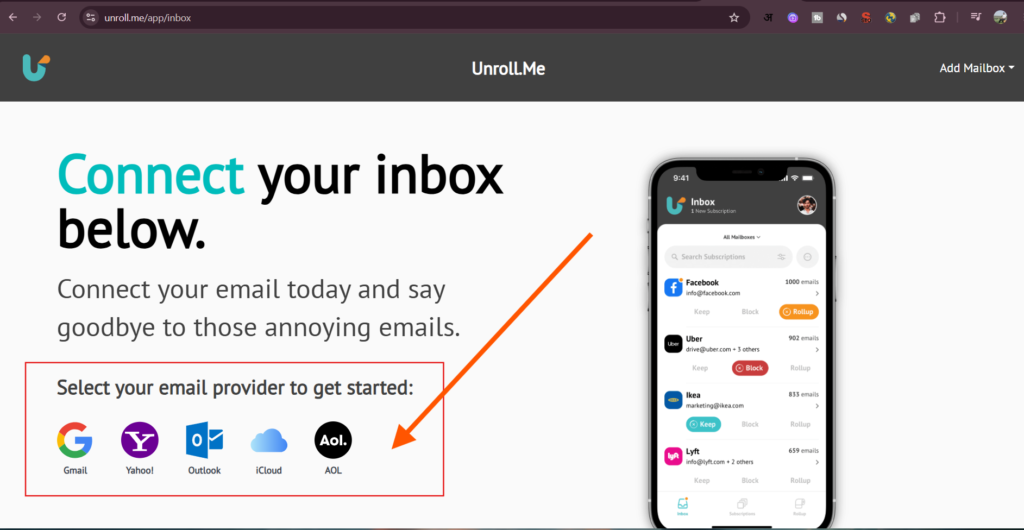
- Let it scan — takes about 2 minutes
- Click “Unsubscriber” from the left menu
- You’ll see every mailing list you’re on, often 50–200+ subscriptions
- Sort by “frequency” to find who’s emailing you most
- Select all the ones you don’t want → click Unsubscribe
I removed 94 subscriptions in about 20 minutes. That alone cut my daily incoming spam by roughly 60%.
One thing I learned the hard way: Don’t click “unsubscribe” links inside suspicious emails from senders you don’t recognize. Legitimate companies are required to honor unsubscribe requests. Spammers use those clicks to confirm your email is active — and then sell it to more spammers. Use the tool instead, or just mark-as-spam and delete.
Related Articles:
- What Is a Disposable Temporary Email? (And When You Actually Need One)
- I Stopped Giving Real Websites My Real Email. Here’s What I Use Instead.
- Why I Never Travel Without a Burner Email Address (Digital Nomads, Take Note)
- What Is a Disposable Email Address and Why Everyone Should Use One
Method 2: Train Your Spam Filter (Most People Skip This)
Gmail, Outlook, and Apple Mail all have spam filters — but they work better when you actively train them. Most people just ignore spam emails or delete them without telling their email client why they’re spam.
Every time you get a spam email, don’t just delete it. Mark it as spam. That single action teaches the filter to catch similar emails in the future.
In Gmail: open the email → click the three dots menu → “Report spam”
In Outlook: right-click the email → “Mark as junk”
Do this consistently for two weeks and you’ll notice a real difference in what makes it to your inbox vs. what gets caught automatically.
I went from about 15 spam emails reaching my inbox daily to maybe 2–3. Just from being consistent about reporting instead of deleting.
Method 3: Create Filters and Rules for What’s Left
Some emails aren’t quite spam but you also don’t want them cluttering your main inbox. Think: bank notifications, order confirmations, newsletters you actually want but don’t need to see immediately.
Setting up filters takes 10 minutes and saves hours long-term.
In Gmail:
- Open any email from the sender you want to filter
- Click the three dots → “Filter messages like these”
- Click “Create filter”
- Choose what to do: skip inbox, apply a label, archive automatically
- Check “Apply to matching conversations” to clean up past emails too
I created filters for:
- Order confirmations → label “Orders”, skip inbox
- Bank alerts → label “Finance”, skip inbox
- Newsletters I want to keep → label “Reading”, skip inbox
Now my main inbox only shows emails that actually need my attention. Everything else is sorted and waiting when I want it.
Method 4: The Nuclear Option — Select All and Archive
If your inbox is completely overwhelming and you just want a fresh start, this is the move.
This feels scary. Do it anyway.
In Gmail:
- Click the checkbox at the top to select all visible emails
- A banner will appear: “Select all X conversations in Primary”
- Click that link to select everything
- Click Archive (not Delete — you can still search for things later)
Your inbox goes to zero. Nothing is deleted. You can search for any old email whenever you need it. But your inbox looks clean and you start fresh from today.
I did this after my first week of using the other methods. It felt like finally cleaning a room you’d been avoiding for a year. Genuinely cathartic.
The mistake to avoid: Don’t do this as your only step. If you archive without unsubscribing first, your inbox will be full again within a week. Do methods 1 and 2 first, then archive.
Method 5: Use a Disposable Email for New Signups Going Forward
This is the prevention method — stops the problem from rebuilding itself.
Every time you sign up for something new (a free trial, a download, a forum, a one-time service), use a temporary email address instead of your real one. The confirmation email arrives in the temp inbox, you click the link, and that’s it — none of their future emails ever reach you.
Services like Temp Mail (temp-mail.org), Guerrilla Mail, or 10 Minute Mail give you a working inbox instantly, no signup needed.
I started doing this religiously about 18 months ago. The difference in new spam reaching my inbox since then is night and day. Maybe 1–2 new spam senders per month instead of 10–15.
For services you actually care about — your bank, your work tools, things you want updates from — use your real email. For everything else, temp email. That mental split is the whole game.
Method 6: The “Sender Block” Pass
After you’ve done the bulk unsubscribe and trained your filter, there are always a few persistent senders who somehow keep getting through.
Do a dedicated blocking session once a month. Search your inbox for “unsubscribe” — this surfaces almost every marketing email in one view. Go through them, block any sender that’s still showing up after you unsubscribed.
In Gmail: Open email → three dots → “Block [sender name]”
In Outlook: Right-click → Junk → Block Sender
Blocked senders go straight to spam/junk automatically, forever. It takes about 10 minutes once a month and keeps things clean.
Method 7: Switch to a Better Inbox Layout
This one isn’t about deleting spam — it’s about making sure important emails don’t get buried even if some spam gets through.
Gmail’s tabbed inbox (Primary / Promotions / Social / Updates) is genuinely good at this if you use it properly. Most marketing email automatically lands in Promotions, keeping your Primary tab clean for real messages.
To enable it in Gmail:
- Click the gear icon → “See all settings”
- Go to “Inbox” tab
- Under “Inbox type” select “Default”
- Check the tabs you want: Promotions, Social, Updates
- Save changes
Now even if a newsletter slips through your filters, it won’t compete with your actual emails for attention. You can batch-check Promotions once a day or once a week on your own terms.
I check my Promotions tab on Friday afternoons. Takes five minutes, I grab any actual deals or updates I want, and I delete the rest. It changed how I feel about my inbox entirely.
The Mistakes That Made My Inbox Worse Before It Got Better
Clicking unsubscribe on every email blindly. As I mentioned — legitimate senders, yes. Unknown senders, no. I confirmed my email was active to several spam lists this way and made things temporarily worse.
Using only one method. I tried just filters once. Then just unsubscribing once. Neither worked alone. The combination is what creates lasting results.
Letting it build up again. After my big clean, I got lazy for about a month and stopped using temp emails for new signups. Within six weeks I had 40+ new subscriptions. The maintenance habits matter as much as the one-time cleanup.
Treating all newsletters as spam. Some of them are genuinely useful and I’d already forgotten I subscribed. Before mass-unsubscribing, I’d recommend skimming the sender list for anything you actually want to keep. I almost accidentally unsubscribed from a security alert service that sends me important notifications.
The Tools Worth Bookmarking
- Clean Email (clean.email) — best all-around inbox management tool
- Unroll.me — free, good for bulk unsubscribing
- Temp Mail (temp-mail.org) — for preventing future spam at the source
- Gmail Filters — free, built-in, underused by most people
- Leave Me Alone (leavemealone.app) — paid but excellent if you want detailed analytics on your subscriptions
Where to Start If You’re Overwhelmed Right Now
Don’t try to do all seven methods today. Here’s the order that makes the most sense:
Day 1: Install Clean Email or Unroll.me, do the bulk unsubscribe. This alone will reduce incoming spam significantly within 48 hours.
Day 2–3: Train your spam filter aggressively. Mark everything that got through as spam.
Day 4: Set up Gmail tabs or Outlook focused inbox if you haven’t.
Weekend: Do the archive-everything reset. Start with a clean inbox.
Going forward: Use temp email for any new signups. Do a monthly blocking pass.
The whole process took me about a weekend of actual effort and maybe 10 minutes per week to maintain after that. For 11,000 emails worth of chaos, that felt like a miracle.
Your inbox should be a tool, not a source of dread. It can get back there — it just takes one cleanup weekend and a few new habits.