It started with a weirdly specific sales call.
I’d opened a promotional email from a SaaS tool I was considering — just glanced at it, didn’t click anything, closed it. Twenty minutes later, a sales rep called me. “I saw you were checking out our pricing page,” he said. I hadn’t visited their pricing page. I’d only opened the email.
That’s when I learned about email tracking pixels — tiny invisible images embedded in emails that report back to the sender the moment you open them. Time of open, your approximate location, what device you used, sometimes even how long you spent reading.
I felt genuinely unsettled. Not paranoid-conspiracy unsettled — just the quiet discomfort of realizing something had been happening without my knowledge for years.
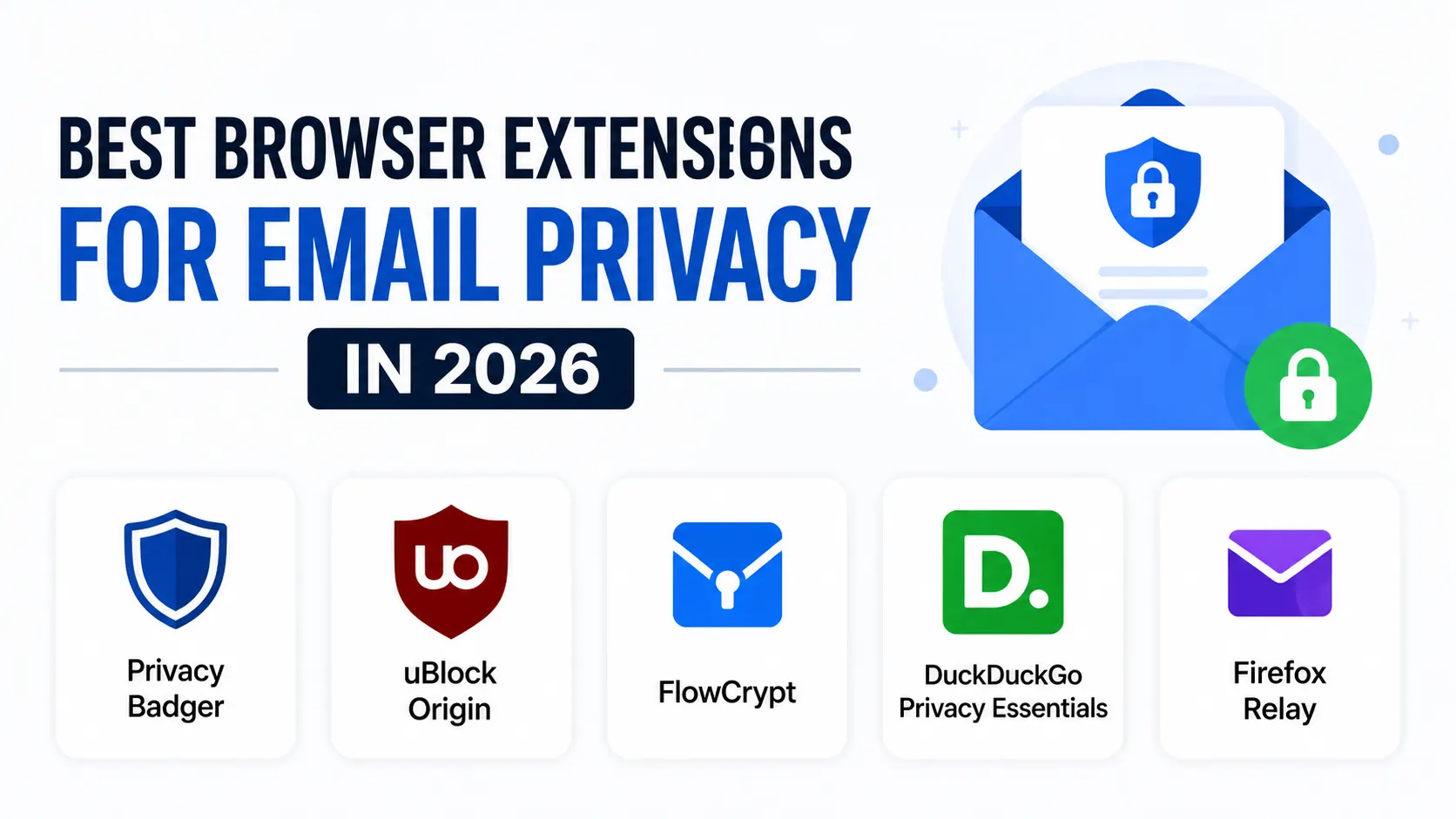
That afternoon I went looking for browser extensions to fix it. I’ve been refining that list ever since. Here’s what’s actually worth installing in 2026.
First, Understand What You’re Actually Protecting Against
Before throwing extensions at the problem, it helps to know what’s happening.
Tracking pixels are the biggest one. A 1×1 invisible image loads when you open an email, pinging the sender’s server with your data. Almost every major email marketing platform — Mailchimp, HubSpot, Salesforce — uses them by default.
Link tracking is the second issue. That “click here” button in a newsletter? It rarely goes directly to the destination. It routes through the sender’s tracking server first, logging that you clicked, when, and from what device — before bouncing you to the actual page.
Email header exposure is less common but real — your email client can sometimes leak metadata about your setup.
None of this is illegal. Most of it is in the terms of service you didn’t read. But knowing it’s happening and choosing to limit it is completely reasonable.
Related Articles:
- What Is a Disposable Temporary Email? (And When You Actually Need One)
- I Stopped Giving Real Websites My Real Email. Here’s What I Use Instead.
- Why I Never Travel Without a Burner Email Address (Digital Nomads, Take Note)
- What Is a Disposable Email Address and Why Everyone Should Use One
- My Inbox Hit 11,000 Unread Emails — Here’s the Exact Process I Used to Fix It
The Extensions Worth Installing
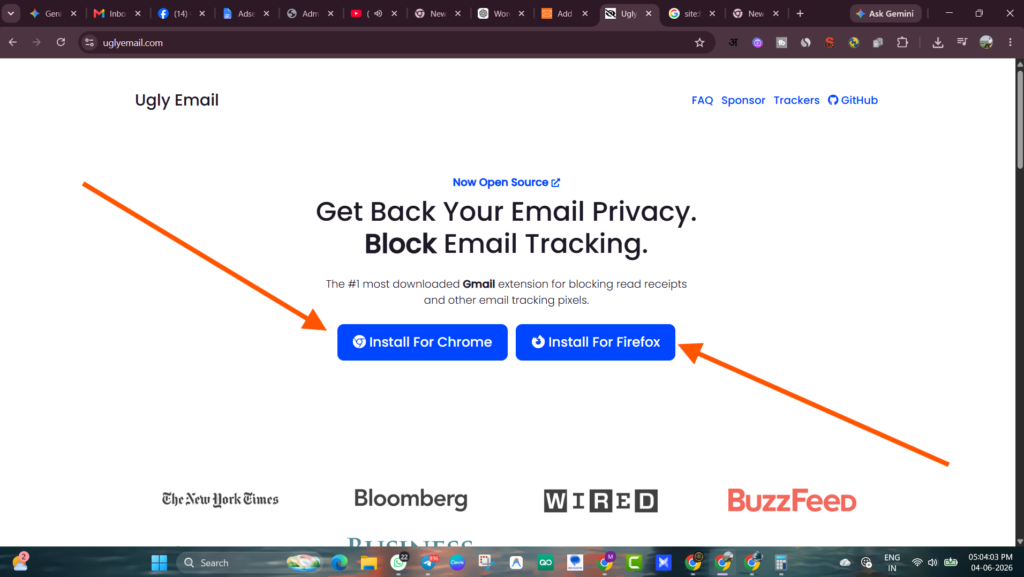
1. Ugly Email (Chrome, Firefox) — The Eye-Opener
Start here, especially if you want to see the problem before solving it.
Ugly Email adds a small eye icon next to any email in your Gmail inbox that contains a tracking pixel. It also blocks those pixels from loading when you open the email.
The first time I installed it, I opened my inbox and saw eye icons on about 70% of my emails. Newsletters, promotional emails, even a couple of emails from software companies I used professionally. It was a bit of a moment.
How to install:
- Go to the Chrome Web Store and search “Ugly Email“
- Click “Add to Chrome”
- Open Gmail — tracked emails will immediately show the eye icon
- Open any of them and Ugly Email silently blocks the pixel from firing
It’s free, lightweight, and requires no configuration. Best starting point for anyone new to this.
One limitation: It only works with Gmail in a browser. If you use Outlook, Apple Mail, or a desktop client, you’ll need something else.
2. PixelBlock (Chrome) — Purely Focused on Pixel Blocking
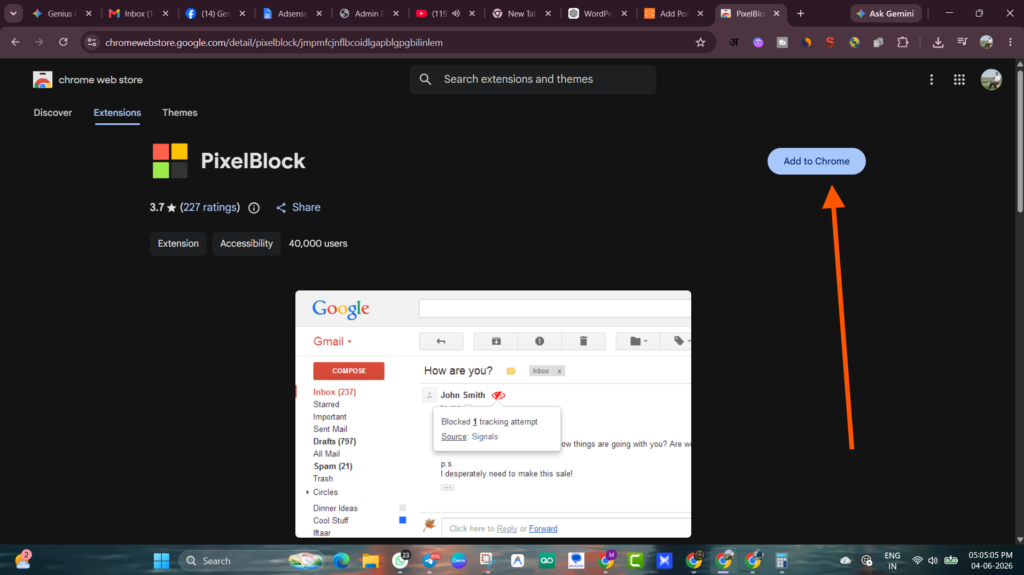
If Ugly Email is the visual alert system, PixelBlock is the silent bodyguard.
It does one thing: blocks email tracking pixels in Gmail. No dashboard, no settings to fiddle with. Just installs and works. When it blocks a tracker, a small red icon appears on the email — you know it caught something, but it doesn’t interrupt your reading flow.
I use both Ugly Email and PixelBlock together. Redundant? Slightly. But they use different detection methods and occasionally one catches something the other misses.
Worth knowing: PixelBlock is specifically Chrome + Gmail. If you’re on Firefox or a different email client, it won’t help.
3. DuckDuckGo Privacy Essentials (Chrome, Firefox, Edge) — The Broad Shield
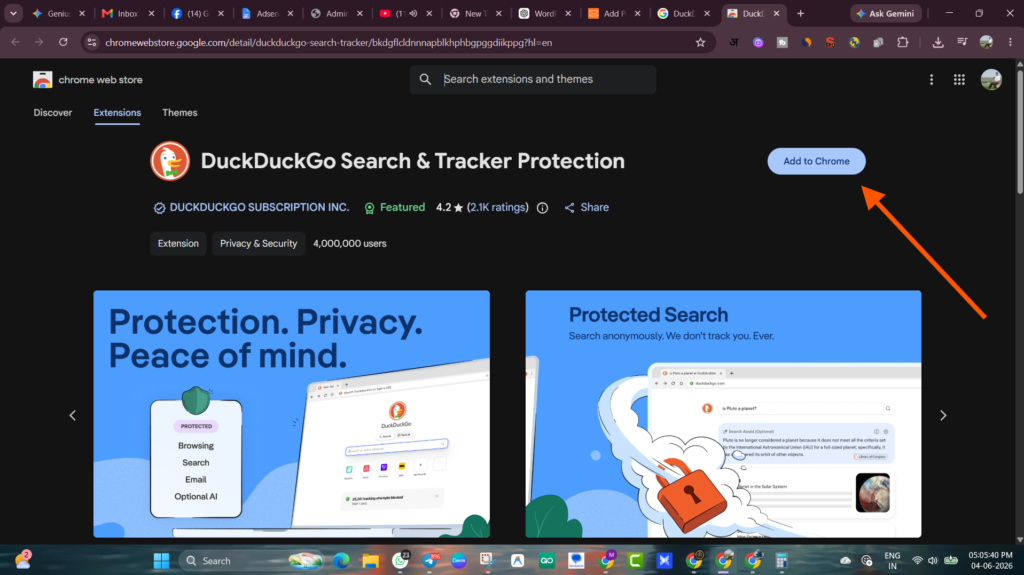
This one goes beyond email. DuckDuckGo Privacy Essentials blocks trackers across the entire web — including the tracking redirect links inside emails when you click through to websites.
When you click a link in an email and it routes through an analytics redirect before reaching the actual site, DuckDuckGo can interrupt that chain and take you directly to the destination without the tracking hop.
It also shows you a privacy grade for every website you visit — which is useful for quickly assessing how aggressively a site is tracking you.
How to set it up:
- Install from Chrome Web Store or Firefox Add-ons (search “DuckDuckGo Privacy Essentials”)
- The extension icon appears in your toolbar — click it to see the tracker report for any page
- No additional configuration needed for basic use
- Optional: enable “Email Protection” within the DuckDuckGo app (more on this below)
DuckDuckGo also has a standalone Email Protection feature (currently free) that gives you a @duck.com forwarding address. Emails sent to that address get stripped of trackers before being forwarded to your real inbox. It’s not a browser extension per se, but it integrates with their ecosystem and it’s genuinely excellent.
4. SimpleLogin (Chrome, Firefox) — Email Aliases at Your Fingertips
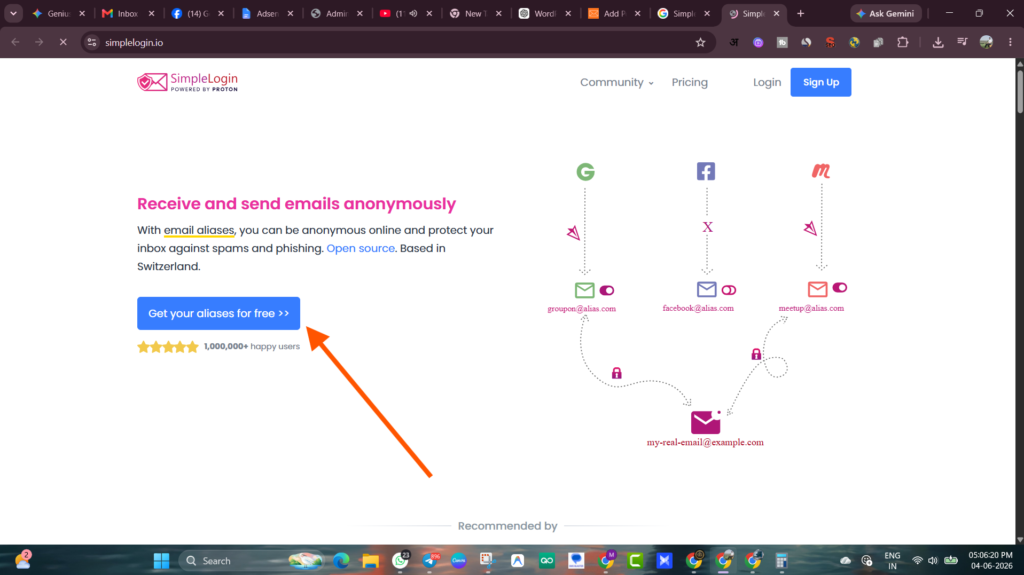
SimpleLogin solves a different but related problem: preventing your real email address from being harvested in the first place.
The browser extension lets you generate a unique email alias for every website you sign up on — directly from your toolbar without opening a separate tab. Each alias forwards to your real inbox. If one starts getting spammed, you disable that single alias. Your real address is never exposed.
Practical use:
- Install SimpleLogin extension
- Create a free account at simplelogin.io (owned by Proton, open source)
- When you hit a signup form, click the SimpleLogin icon in your toolbar
- Generate an alias — something like
yellowbird-432@simplelogin.io - Paste it into the form
The site gets the alias. You get the emails forwarded to your real inbox. If they sell it or spam you, one click disables the alias and the emails stop — without you ever changing your actual email address.
I’ve been using SimpleLogin for about 18 months. I have 60+ active aliases right now. Three of them have been disabled after the sender clearly sold the address. That would have been three spam infections in my real inbox.
Free tier: Up to 10 aliases. Paid plan (about $4/month) is unlimited.
5. uBlock Origin (Chrome, Firefox, Edge) — The Heavyweight
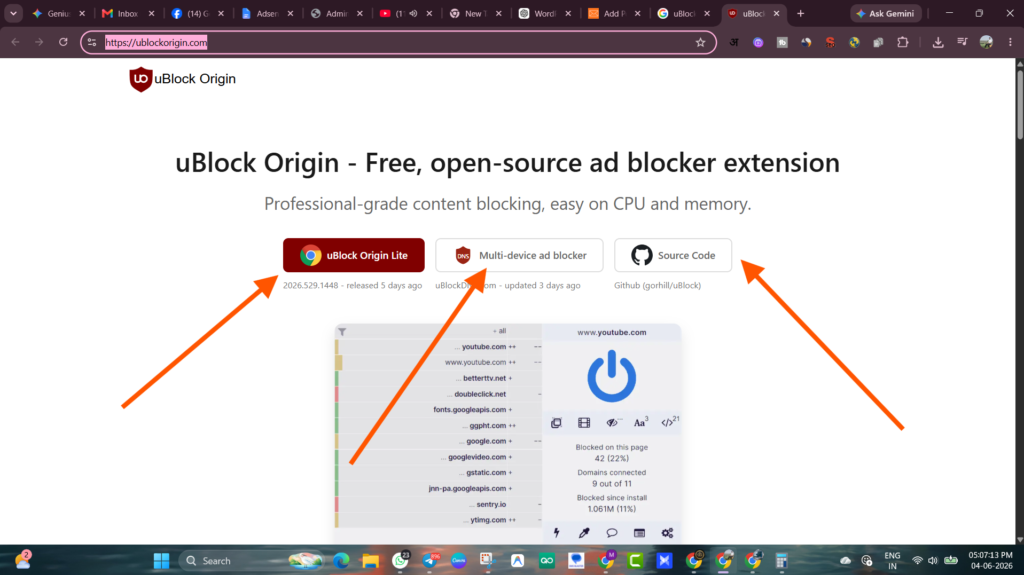
uBlock Origin is primarily an ad blocker, but its tracker-blocking capabilities are among the best available in any browser extension.
For email privacy specifically, it’s most useful when you click through from emails to websites — blocking the third-party trackers, fingerprinting scripts, and analytics tools that load on those pages and potentially connect your email behavior to your broader web activity.
It’s more technical than the others and has a learning curve if you want to customize it. But on default settings, it just works — and it’s more effective than most alternatives.
Important: There are fake “uBlock” extensions in the Chrome store. The real one is uBlock Origin by Raymond Hill. Check the developer name before installing.
Firefox users get the best version — Chrome’s Manifest V3 changes have slightly limited what extensions can do, but uBlock Origin still works well on both.
6. Privacy Badger (Chrome, Firefox) — The Self-Learning Option
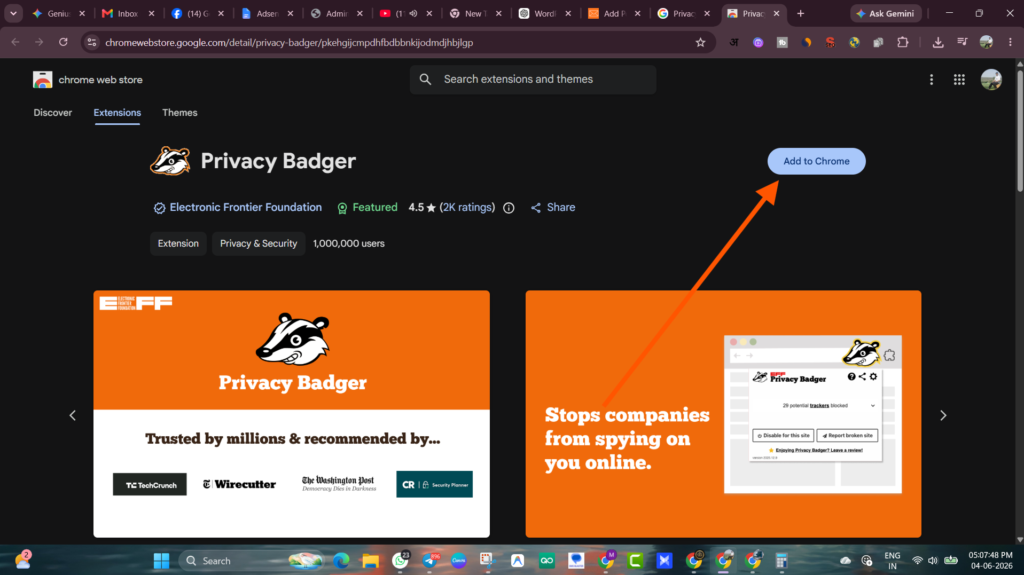
Privacy Badger, made by the Electronic Frontier Foundation (EFF), takes a different approach. Instead of using a blocklist, it learns which trackers to block by watching how they behave across sites.
If a third party is tracking you across multiple sites without your consent, Privacy Badger starts blocking it — even if it’s not on any known blocklist yet.
For email privacy, it works similarly to uBlock Origin when you click through to websites from emails. It’s not specifically an email tool, but it adds a useful layer.
It’s also completely free and nonprofit-backed, which I appreciate for a privacy tool.
Mistakes I Made Setting These Up
Installing too many extensions at once. I went overboard early on and had five privacy extensions all trying to block the same things. They occasionally conflicted, slowed my browser down, and sometimes broke website functionality. Start with two or three, get comfortable, then add more if you feel you need them.
Forgetting that extensions only protect the browser. If you check email in a mobile app — Gmail for iOS, Outlook for Android — none of these browser extensions apply. For mobile, you need to change settings within the apps themselves. Gmail has a setting to “ask before displaying external images” which effectively blocks tracking pixels on mobile.
Not checking for updates. Privacy extensions need to stay current as tracking methods evolve. Make sure auto-updates are enabled and occasionally check the extension developer’s site for news.
Using a VPN and thinking that was enough. A VPN hides your IP address and encrypts traffic — useful, but it doesn’t block tracking pixels inside emails or stop email marketing platforms from knowing you opened their message. VPN and email privacy extensions solve different problems. You need both if you want real coverage.
The Setup I’d Recommend for Most People
If you want solid email privacy without going down a rabbit hole, here’s the combination that covers the main attack vectors:
- Ugly Email — see which emails are tracking you
- SimpleLogin — stop giving out your real email address going forward
- uBlock Origin — block trackers when you click through to websites
- DuckDuckGo Email Protection — strip trackers from emails before they even arrive
That’s a strong baseline. Everything else is additional layers if you want to go deeper.
A Note on Temp Email vs. Aliases vs. Privacy Extensions
These tools solve related but different problems, and people sometimes confuse them.
Temporary email addresses (like Temp Mail or Guerrilla Mail) are for one-time signups where you don’t want any ongoing relationship. The address expires and you’re done.
Email aliases (like SimpleLogin or DuckDuckGo Email Protection) are for situations where you want ongoing forwarding but don’t want to expose your real address. You can disable them later.
Browser privacy extensions protect you from what happens after the email arrives — blocking tracking pixels, stripping redirect links, blocking downstream trackers.
A complete privacy setup uses all three, applied in the right situations. Temp email when you’re signing up for something you’ll use once. An alias when you need a real ongoing account. Extensions protecting everything in between.
The sales call that kicked this off — I later confirmed it was a tracking pixel in their welcome email reporting my open. The rep saw “email opened” in their CRM and called me within minutes. Completely automated, perfectly legal, and not something I’d ever consented to in any meaningful sense.
None of these extensions make you invisible. But they make you considerably less trackable without requiring much effort. For most people, that’s exactly the right tradeoff.